
A QR code turns a printed card into a review in about a minute. The customer points their camera at it, the review box opens, and they tap the stars. No searching for your business, no typing.
Google makes the code for you, so you don't need a paid QR code generator. The work is in printing it so it scans, deciding where it goes and what it says next to it. Restaurant SEO gets a lot from QR codes, since a table card catches diners before they leave.
How to get your Google review QR code
Google creates the code inside your Business Profile, and only in a computer browser. You can't download it from the phone app.
- On a computer, sign in to the account that runs your Google Business Profile.
- Open the profile from Google Search or Maps, then select Read reviews.
- Select Get more reviews to open the window with your link and code.
- Right-click the QR code, then choose Save image as to download it.
- Copy the review link from the same window for texts and emails.
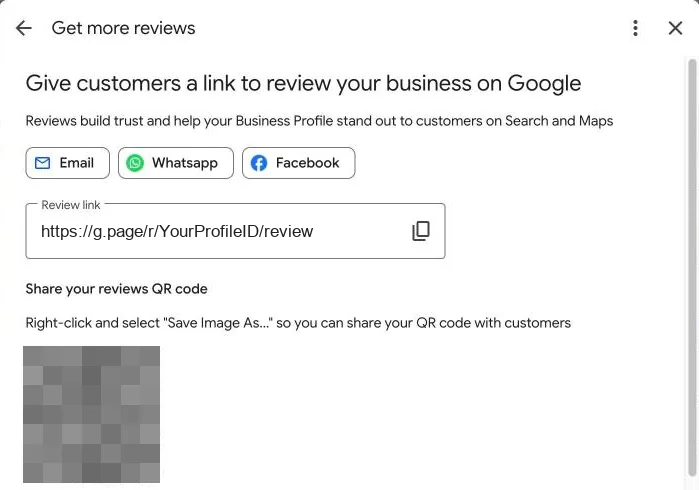
Save the image as a PNG at full size, and keep the original file. Each location has its own Business Profile, so a business with three locations needs three codes. Label each file with the location, so the right code goes on the right cards.
Free tool
Check your review link and make a QR code
Your link stays on this page. Your browser draws the code, and we store nothing.
The tool above checks that your link is a Google review link and draws the code in your browser. Download the SVG for print and the PNG for emails and social posts.
Where to put your review QR code
Put the code where customers are right after you finish, while they feel good about it. For a service business, that's rarely the storefront.
| Business | Where the code works | The line next to it |
|---|---|---|
| Home services | Leave-behind card, invoice and receipts | "How was the visit? Scan to review us." |
| Cleaning companies | Card left on the counter after each clean | "Your feedback helps our crew. Scan to share." |
| Dental and medical | Checkout card and appointment reminder | "Scan to tell others about your visit." |
| Contractors and roofers | Final invoice and yard sign | "How did we do? Scan to leave a review." |
| Law firms | Closing letter and business cards | "Your review helps people find the right lawyer." |
Keep the line honest and short. Don't promise anything for a review, since Google bars rewards of any kind. Don't put a tablet with the code in front of customers either. Google's policy bars pressuring people to review while they're on your premises.
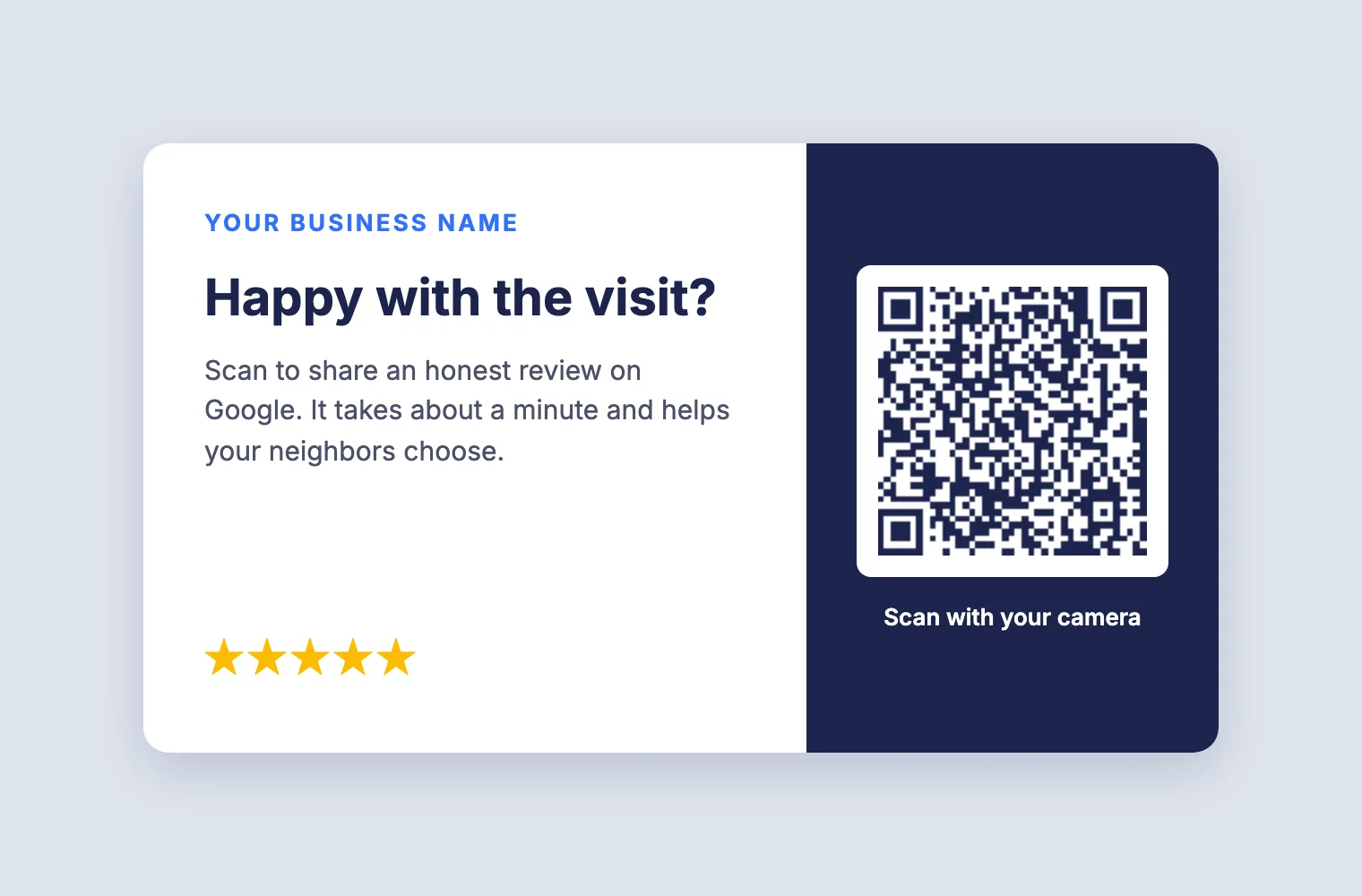
A card works best next to a direct ask, which is the step most local businesses skip when creating their review routine. The tech says thanks and mentions the review, and the card does the rest later.
Print it so every phone can scan it
Most QR codes fail because someone printed them too small, too faint or too close to other ink. A few rules prevent that.
- Size. Print the code at least 2 cm (0.8 inch) wide on cards and receipts. For signs, make it a tenth of the scanning distance.
- Margin. Leave a blank border around the code at least four squares wide, as the QR standard requires.
- Contrast. Use dark squares on a light background, never the reverse, and skip busy patterns behind it.
- Testing. Scan the proof on an iPhone and an Android phone before you print a full run.
Each time you resize the code in a design tool, test it again. A code that won't scan wastes every card you print.
Help customers trust the code
Customers have reason to be careful. The FTC warns that scammers hide harmful links in QR codes. It tells people to check the link a phone previews before opening it. Make that check easy. Print your business name next to the code and keep Google's own link, so the preview shows a google.com address.
Never use a QR code generator that sends scans through its own short link. The preview then shows an unknown address, and the service can switch your code off when you stop paying.
NFC review cards versus QR codes
An NFC card opens your review link when a customer taps it with a phone. iPhones from the XS onward read these tags without an app, and most Android phones do too, with NFC turned on.
| Point | QR code | NFC card |
|---|---|---|
| Cost | Free from Google, plus printing | A card or stand you buy and program |
| How customers use it | Open the camera and scan | Tap the phone on the card |
| Where it works | Paper, invoices, signs and screens | Counters and front desks |
| Risk | Fails if printed too small | Fails if NFC is off or the phone is old |
For most service businesses, a printed code wins, because it goes home with the customer. An NFC stand suits a front desk where customers pay in person. Many stands also carry a printed QR code as a backup.
How to count your QR code scans
Google's review link doesn't tell you how many people scanned your code. If you want that number, point the code at a page on your own website first. Our web design team can build that page in your CMS with a redirect to the review box.
- Create a short page on your own site, such as yoursite.com/review, for the code.
- Add your analytics tag, then forward visitors to your Google review link after a second.
- Generate the QR code from that page's URL with a free generator, then test it.
- Count visits to that page each month in Google Analytics, next to new reviews.
The page has to load before it forwards. A server redirect sends people on before Google Analytics runs, so it records nothing, though your hosting logs still count the visits. This setup also protects your printed cards. If Google changes the review link, you update the page, and every card still works.
Common questions about review QR codes
Is the Google review QR code free?
Yes. Google makes it at no cost inside your Business Profile, along with the review link.
Do I need a separate QR code for each location?
Yes. Each location has its own Business Profile and its own review link, so make one code per location. A shared code sends every review to the same profile.
Can I make the QR code on my phone?
No. Google generates it only in a computer browser. You can still share the review link from your phone.
Does a QR code get more reviews than a text?
They work best together. A card reminds the customer later, and a text with the link reaches them on the same day. Our Google profile optimization team can also set it all up.