
Video is now the verification method most new Google Business Profiles get, often with no other option. Many owners have never made a verification video before. The rules are simple, but a missing detail sends you back to the start and adds another week.
Plan the video before you press record, because Google only takes live footage. This guide covers Google's video verification requirements, a shot list for each type of business, offices in shared buildings and the reasons videos fail.
Google's video verification requirements
Google reviews the clip before your profile goes live, so it has to show everything in one continuous take. Until verification passes, no local SEO work can show on Maps, so film it right the first time.
- Live footage only, shot inside your Business Profile, never a clip from your gallery.
- One unbroken take, with no edits, pauses or cuts between scenes.
- At least 30 seconds, and Google sets no maximum length.
- No private details, such as bank, tax or ID numbers, or other people's faces.
The video has to come from a phone. If you started on a computer, sign in to the same Google account on your phone and open the profile there.
How to film and send it
You'll need your phone at the business location, with location, camera and microphone access allowed. The whole verification process takes a few minutes once you have a plan.
- Open your profileFind your Business Profile on your phone, tap Get verified and enter your number if asked.
- Choose the video optionTap Business video and read the requirements Google lists for your business.
- Film one takeTap Start recording, then the record button. Tap stop once you film every shot.
- Check the takeWatch it back. Tap Try again to film over it if anything is missing.
- Send itTap Upload video. If the upload fails, send it again from the same screen.
What to film, by type of business
Google wants three things in every video. What counts as proof depends on whether customers come to your location.
| What Google wants | Storefront or hybrid business | Service-area business |
|---|---|---|
| Where you are | Street signs, building numbers or the businesses next door | Street signs or landmarks near your base, never empty land |
| That the business exists | Signage on a permanent fixture, with the name as it reads on your profile | Tools, equipment, products, business cards or branded clothing |
| That you run it | Places only staff can reach, like the register, kitchen or storage room | You doing the work, opening a branded van with your key, or business documents like a permit, invoice or utility bill |
Home-based businesses can film landmarks in the surrounding neighborhood. Keep the home address off your profile if customers never come there.
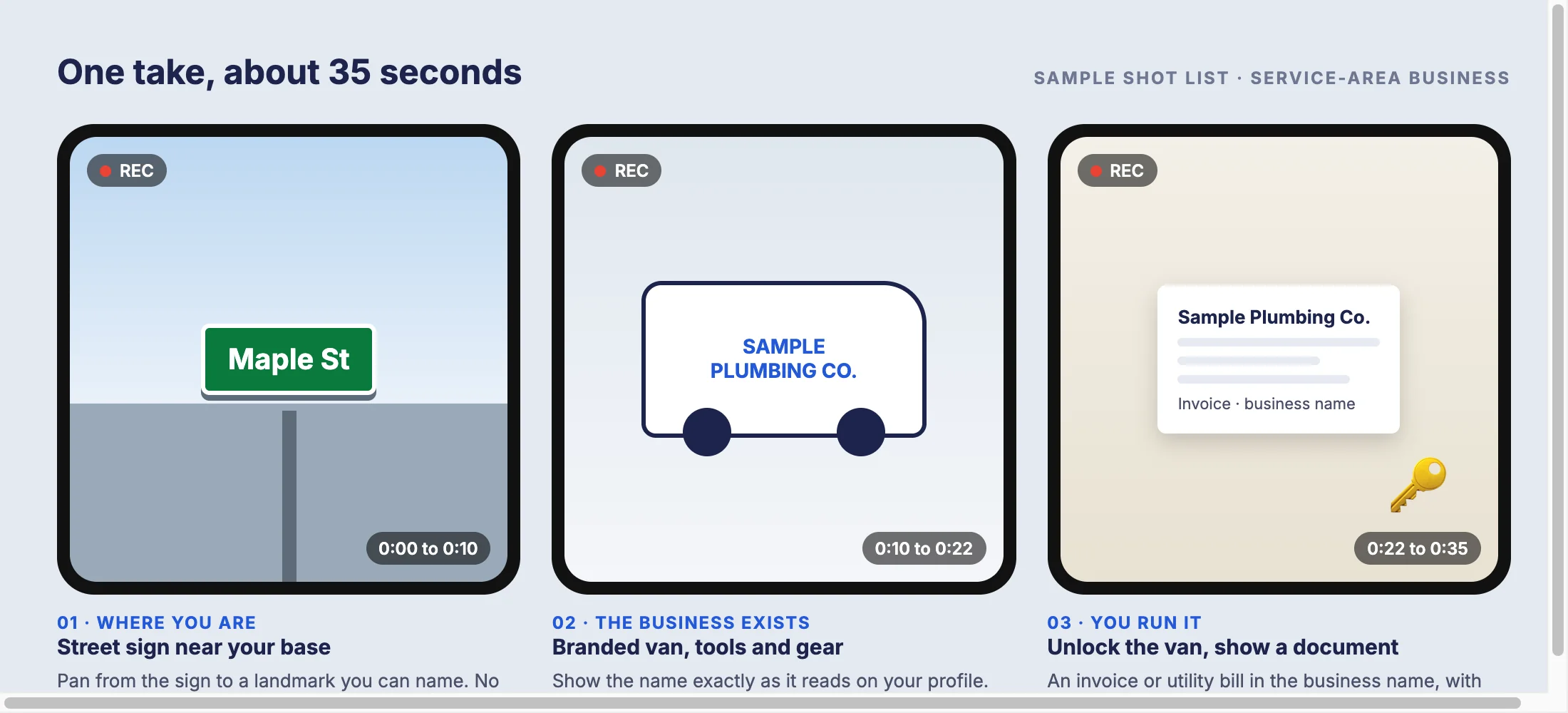
For a storefront, the order changes. Start at the street corner, walk to the sign, then step inside and open a staff-only area like the register.
Offices in a shared building
Google's help page doesn't mention offices inside a larger building, which is common for law firms, dental offices and agencies. Apply the same three proofs in one walk. Start outside with the street number and building name. Then film the lobby directory or floor sign that lists your business. End at your suite door with its name plate, and step inside to show a staff-only space. Dental offices meet this case often, so plan the walk before any dental SEO work starts.
Why Google rejects verification videos
When Google turns a video down, the profile shows the reasons it wasn't accepted. These are the most common ones, and how to avoid each when you film again.
| Reason | How to fix it |
|---|---|
| The business name isn't visible | Hold the signage, van or document in frame for a few seconds |
| No nearby area shown | Start with a street sign or landmark you can name |
| No proof you run the business | Open a staff-only space, or show a bill or permit in the business name |
| The name doesn't match the profile | Fix the profile name or film signage that matches it exactly |
| The clip has edits or pauses | Record again in one take, start to finish |
After you upload
Google takes up to 5 business days to review the video. You'll see either a success message or a reason it failed. Once you verify, your edits go live and the profile can show in local results on Maps and Search.
If it fails, tap Review issues on your profile. Film a new video that includes everything from the first one, plus whatever was missing. If you keep getting turned down, Google suggests trying another verification method if your profile offers one.
To remove the clip later, go to More, Business Profile settings, Advanced settings, then Delete videos under Video uploads. Google says it deletes the video later if you don't. If you cancel an upload partway, neither you nor Google can see that video.
When Google asks a verified profile again
Google may ask for a new video after you change your business information. Its help page says re-verification usually follows recent edits to your details. Make big changes like a new name or address in one go, then follow the same steps shown on your profile.
Video is only one of the methods Google may offer. If you don't serve customers at your address, set up your service area on Google before you film.
Need hands-on help with setup and verification? Our Google Business Profile service covers both.
Common questions about video verification
How long does Google Business Profile video verification take?
Google says reviews take up to 5 business days. Some take longer during busy periods.
Can I upload a video I recorded earlier?
No. Google only accepts footage recorded live through your Business Profile, in one take.
What should I film if I work from home?
Film street signs or landmarks near your home, then your tools, a branded vehicle and a document in the business name.