
Until Google verifies your Business Profile, you can't manage the listing. Your edits don't go live, you can't reply to reviews, and the listing may show on Google Maps with someone else's details. Google Business Profile verification proves you run a real business at the address or area you listed. It's free, and for most new profiles it now takes one short video.
It's also where many owners get stuck. This guide covers where to start, the methods, how to prepare and how to check where you stand. It ends with what to do when Google sends you back to the start. Verification is step one of local SEO, since nobody can manage an unverified profile or answer its reviews.
Where to start verification
- Open your profileGo to business.google.com, or search your business name while signed in.
- Select Get verifiedThe button sits at the top of the profile until Google confirms you.
- Use Google's methodPick from the options shown, since you can't change them.
- Finish and waitRecord the video or enter the code, then allow up to 5 business days.
Google emails you once it confirms the profile. Until then, the Get verified button stays on the profile, which is the quickest way to check your status.
Requirements to get right before you start
Google compares your profile with the business information it can confirm. Mismatches cause most failed attempts in the verification process.
- Your business name matches your sign, invoices and paperwork, with no extra keywords.
- Your address is a place customers visit or your real base, not a virtual office.
- Your phone rings at the business and a person answers, not a menu.
- Your category describes the main work you do every day.
Fix anything that doesn't match first. Google's guidelines say a P.O. box or a mailing address where you don't work can't hold a profile.
Verification methods, and why you'll likely get a video
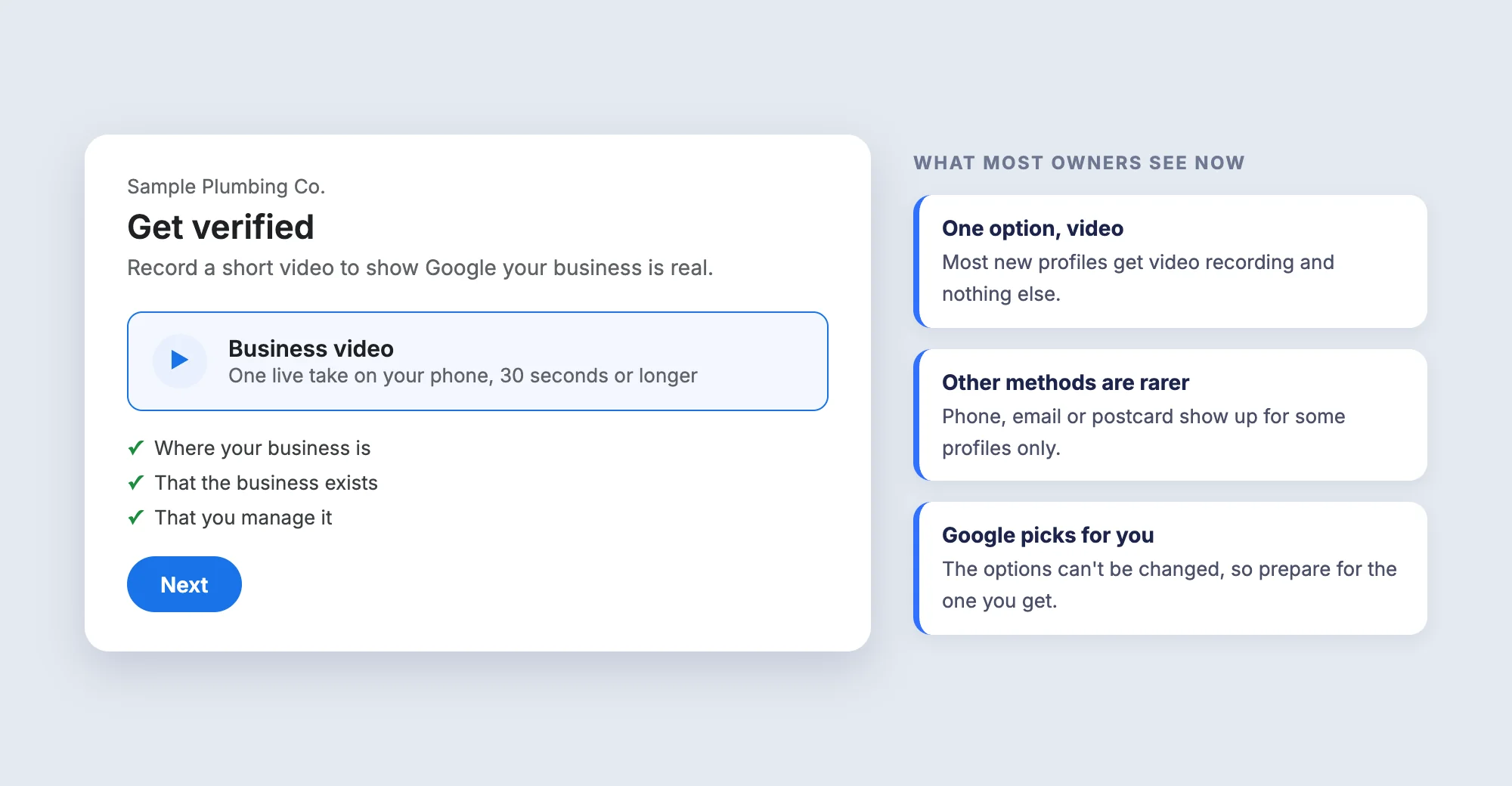
Google decides which methods you see, and you can't change them. Its help center still lists phone, text, email, live video call, postcard and video. In practice, video recording is now the method most new profiles get, and often the only one. That matches what we see when setting up profiles for clients in 2026.
| Method | When it tends to appear | What to have ready |
|---|---|---|
| Video recording | Most new profiles, often as the only choice | Your phone, your sign or tools, and proof you run the business |
| Phone call or text | Some profiles, often older ones with a known number | The business line, answered by a person, not a menu |
| Some profiles where Google can match the address | Access to the inbox Google shows on screen | |
| Live video call | Some businesses, during their business hours only | A device with a camera, at the business |
| Postcard | A shrinking number of profiles, by Google's choice | The mailing address, and no edits until the code arrives |
Since video is the likely route, plan the recording before you start.
Verify faster with Search Console
Google verifies some profiles right away when the owner has already verified the business website in Google Search Console. It's worth setting up before you start. Our technical SEO team verifies Search Console for every client site.
- Add your websiteAdd your site as a property in Search Console, using the same Google account as your profile.
- Verify the siteConfirm you own it with one of Search Console's methods, such as a DNS record.
- Match the linkPut that exact website address in your Business Profile before you select Get verified.
Instant verification isn't guaranteed. If Google still shows other methods, use one of them.
Businesses with 10 or more locations under one brand can ask for bulk verification instead. Service-area businesses can't use it.
When verification fails or loops
Google gives short signals rather than a full explanation. These are the ones you'll see, and what each one means.
| What you see | What it usually means | What to do |
|---|---|---|
| The Get verified button is back | Google couldn't fully confirm your business | Verify again, or pick another method if new ones appear |
| A Review issues notice | Google didn't accept your video | Open the notice, follow its steps and record again |
| A request for more information | You changed business details recently | Select Get verified and go through the steps again |
| The video won't upload | A connection or app problem on your phone | Upload it again from the same screen, on a stronger connection |
| No postcard after two weeks | Cards usually take up to 14 days, and a code lasts 30 days | Keep waiting, since a new request cancels the first code |
Reviews take up to 5 business days, and sometimes longer. Resubmitting during a review rarely speeds it up.
When a code never arrives or doesn't work
Phone codes can't reach a phone menu, so answer the business line yourself or switch to text. Email codes go only to the address shown on the screen. A postcard code stops working if you edit the name, address or category after requesting it, and it expires after 30 days.
If you run out of methods, contact Business Profile support at support.google.com/business/gethelp. Explain what you tried and keep screenshots of each attempt.
What to do after Google verifies you
Verification switches the profile on, but an empty profile rarely ranks. In the first week, add your hours, services, photos and a description.
Verified but still not showing up? New profiles can take time to appear for searches.
Keep the name, address and category stable for a few months. Big changes soon after verification can trigger another check or a suspension.
Once Google verifies the profile, our Google Business Profile management team adds categories, services and weekly posts.
Common questions about Business Profile verification
How much does it cost to verify a business on Google?
Nothing. Creating and verifying a Business Profile is free with every method.
Can I verify my business on Google without a video?
Only if Google offers you another method, and most new profiles see video only. Owners can't change the options Google picks.
Do I need an LLC to verify a Google Business Profile?
No. Google's guidelines ask for a real business that meets customers in person, not a specific legal structure.